Hi,I’m Areeba Fatima from OldGamesWorld, and I’ve been connected with gaming for over 5 years. During this time, I’ve tested hundreds of browser games, low-end PC games, and Chromebook-friendly titles because I know how frustrating it feels when you want to play but your device or school network doesn’t allow you to.
I’ve personally spent a lot of time finding and playing unblocked browser games on school Chromebooks. I understand the common problems players face — games not launching, lag, controls not working, audio issues, or sites being blocked by school firewalls. In this guide, I’m sharing everything from my real experience so you don’t have to struggle the way I did.
What Are “Best Unblocked Games for School Chromebook (No Download) – 2026”?
Unblocked games are browser-based games that you can play without downloading anything and that usually work even on restricted networks like schools or colleges.
In 2026, this category has become incredibly popular because:
Most students use Chromebooks
Schools block game downloads and many gaming websites
Students want quick, safe, no-install games during breaks
Browser games (HTML5 / WebGL) now run very smoothly even on low devices
What I personally love about these games is how instant they are. You open Chrome, visit the site, click play — and you’re in. No setup, no storage issues, no permissions.
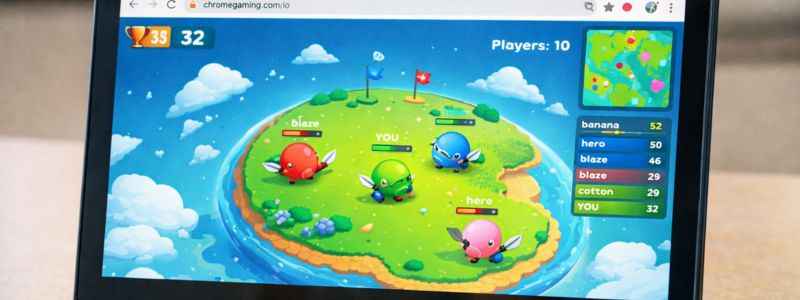
io browser game on chromebook no download
Common Problems Players Face on School Chromebooks (And How I Fix Them)
Over the years, I noticed the same issues again and again. Here’s a step-by-step guide based on what worked best for me.
❌ Problem 1: Game Not Launching
Sometimes you click the game, and nothing happens.
What I do:
Refresh the page
Make sure JavaScript is enabled in Chrome
Try Incognito mode
Switch to another browser tab and come back
Use trusted unblocked game sites (some mirrors don’t load properly)
In my experience, Incognito mode solves this issue 70% of the time.
❌ Problem 2: Lag or Slow Performance
Chromebooks are not gaming machines. Heavy games lag.
Lag Fix (that works for me):
Close all other tabs
Reduce game quality/settings if available
Don’t play full-screen if it lags
Restart the Chromebook before playing
I noticed games run much smoother after a quick restart.
Arrow keys or the spacebar sometimes don’t respond.
Fix:
Click once inside the game screen
Make sure Caps Lock is off
Disable extensions temporarily
❌ Problem 4: No Sound / Audio Issue
This happens a lot on school devices.
Fix I use:
Check Chromebook volume
Click inside the game screen (some games are muted by default)
Use headphones — this surprisingly fixes it often
Best Types of Unblocked Games That Work Perfectly on Chromebook
From my testing, these categories work the best:
IO Games
Lightweight
Multiplayer
No lag
Examples: Snake-style, shooter arenas, survival mini games
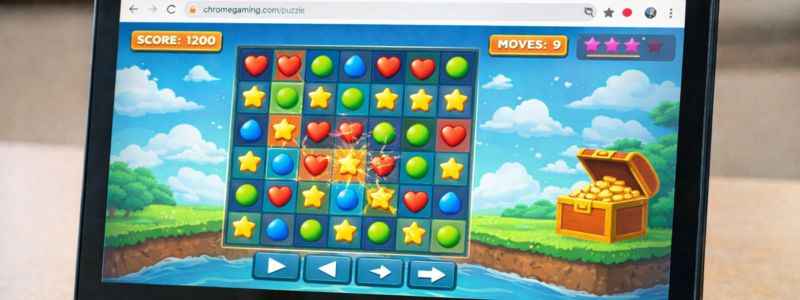
Puzzle & Logic Games
Perfect for short breaks
Very low resource usage
Brain refreshing
Racing Games
Simple controls
Smooth performance in the browser
Shooting / Action Mini Games
Fast gameplay
Keyboard friendly
No heavy graphics
My Personal Favorites (That Never Fail on Chromebook)
These types of games always worked for me without issues:
Snake-style browser games
Simple 2D shooting arenas
Online chess & puzzle platforms
Endless runner games
Classic arcade remakes in a browser
What I love is that these games start instantly and don’t freeze the system.
racing browser game on Chromebook at school
Game Tips for Better Performance (From My Experience)
These small tricks made a huge difference for me:
Always play in the Chrome browser
Avoid full-screen if lag appears
Use the keyboard instead of trackpad for better control
Bookmark working sites so you don’t waste time searching again
Play during break time when the WiFi load is low
Pros and Cons of Unblocked Browser Games on Chromebook
✅ Pros
No download
Works on low devices
Instant play
Safe and quick
Perfect for students
❌ Cons
Limited graphics
Some sites get blocked over time
Requires internet
Not as deep as PC/console games
Still, for a school Chromebook, this is honestly the best possible gaming option.
Beginner Tips (If You’re New to Unblocked Games)
If this is your first time:
Start with puzzle or IO games
Don’t open too many games at once
Learn basic keyboard controls
Save your favorite sites
Don’t click suspicious ads
Why These Games Are So Popular in 2026
Because students don’t want complicated setups. They want:
Click → Play → Enjoy → Close
And unblocked browser games do exactly that.
Final Thoughts From My Side
As someone who has tested dozens of these games personally, I can confidently say:
Unblocked browser games are a lifesaver for Chromebook users in schools.
They are simple, fast, and actually fun when you pick the right ones.
If you’re struggling with games not launching, lag, or controls not working, the fixes I shared above are exactly what worked for me again and again.
I’m Areeba Fatima from OldGamesWorld, and I genuinely recommend every student try these games the right way instead of wasting time searching random sites.
FAQ
Why are games blocked on school Chromebooks?
Schools block downloads and gaming sites to prevent distraction and save bandwidth.
Are unblocked games safe to play?
Yes, if you use trusted browser-based platforms and avoid suspicious ads.
Why is my unblocked game lagging?
Too many tabs open or the Chromebook memory is full. Restart fixes it.
Do I need to install anything?
No. There are no downloadable browser games.
Can I play these games at home too?
Yes, they work even better on home WiFi.
If this guide helped you, explore more helpful gaming content on OldGamesWorld, where I share real, tested tips from my own gaming experience.