
By Areeba Fatima – OldGamesWorld.com
If you are trying to play games on a low-end PC with only 4GB RAM, you already know how frustrating lag, stuttering, and freezing can be. I am Areeba Fatima from OldGamesWorld.com, and for more than five years, I have been helping PC gamers solve performance problems without upgrading hardware.
Most people think their PC is too weak for gaming. But in reality, the issue is wrong settings, background load, and poor optimization. In this complete guide, I will show you practical steps that actually reduce game lag on low-end PCs.
Let’s fix it properly.
Why Game Lag Happens on Low-End PC
Lag happens mainly because:
- RAM fills up quickly
- Too many background apps are running
- Windows is not optimized for performance
- Virtual memory is not configured
- The hard drive becomes slow over time
- In-game settings are too high for the system
You don’t need a new PC. You need the right setup.
Step 1: Best Windows Settings for Gaming Performance
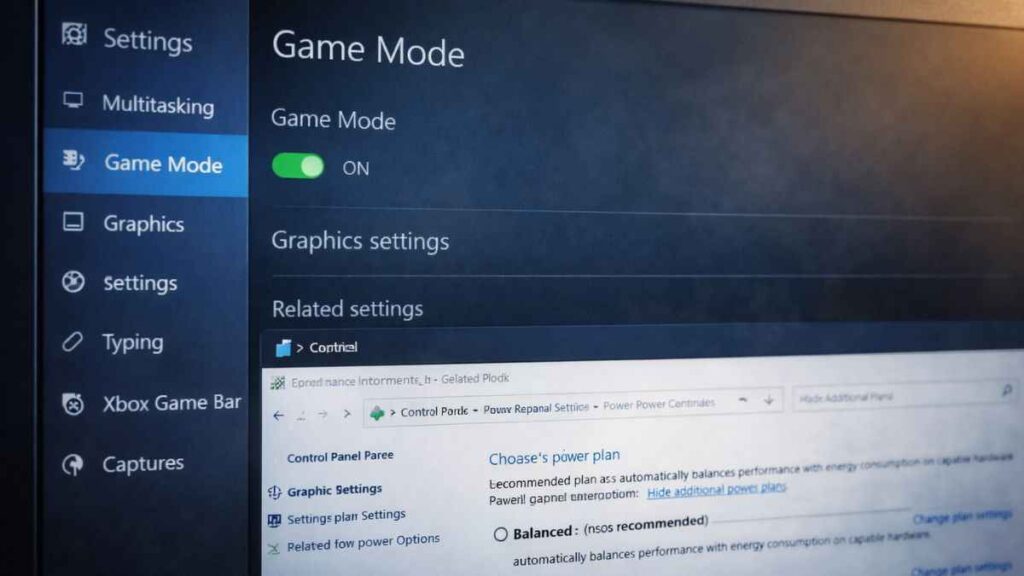
Turn On Game Mode
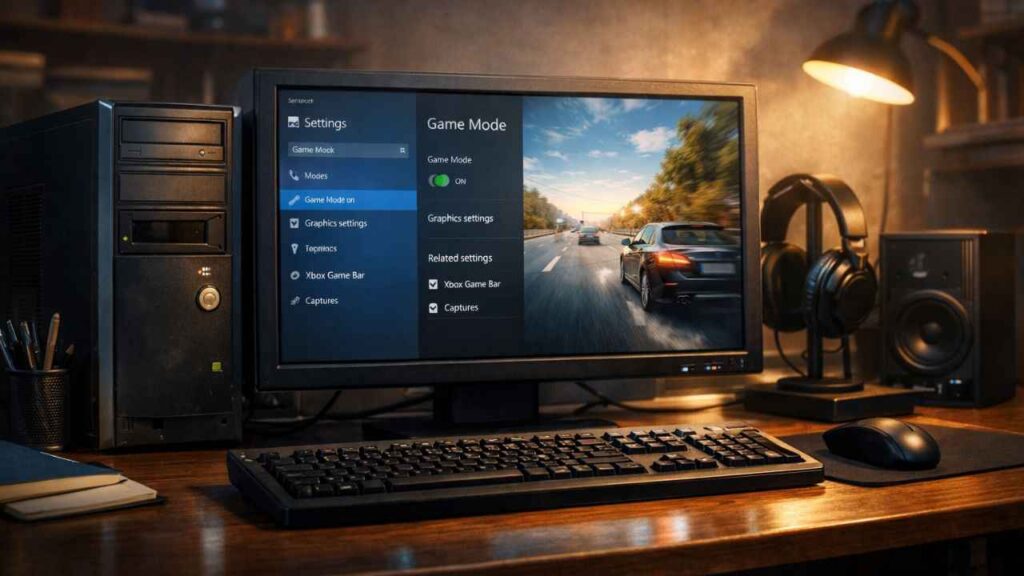
Settings → Gaming → Game Mode → Turn ON
Set Power Plan to High Performance
Search “Power Plan” → Select High Performance
Disable Visual Effects
Search “Adjust appearance and performance of Windows” → Choose Adjust for best performance
These three settings alone free a lot of RAM and CPU usage.
Step 2: Close Background Apps (Very Important)
Before opening any game:
- Close Chrome and browsers
- Disable startup apps from Task Manager
- Close unnecessary software
- Pause antivirus (if safe)
This step alone reduces most lag on 4GB RAM PCs.
Step 3: Adjust Virtual Memory Settings (Major Improvement)
- Open “Advanced system settings.”
- Performance → Settings → Advanced
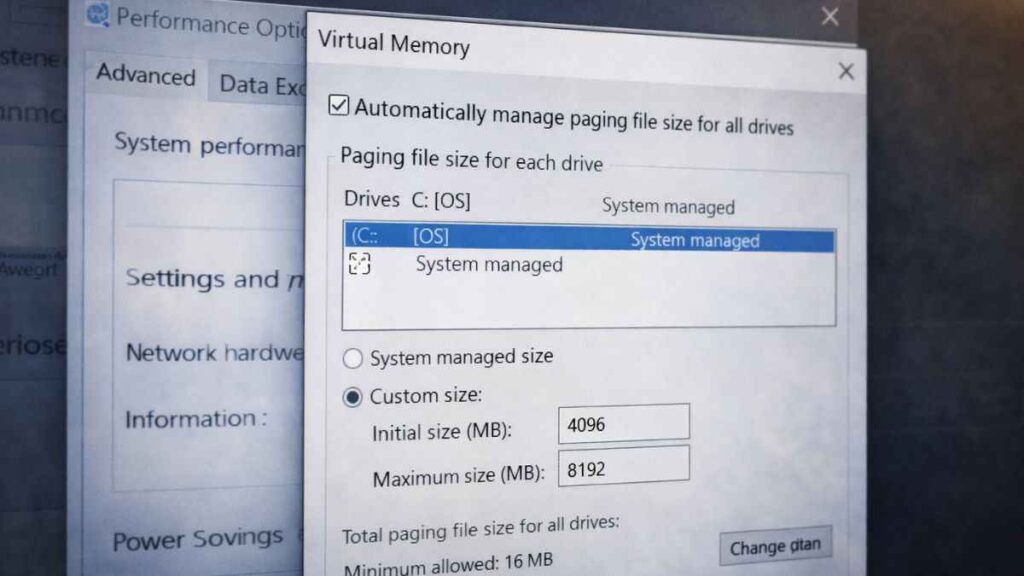
- Virtual Memory → Change
- Uncheck automatic
- Set:
- Initial Size: 4096
- Maximum Size: 8192
This allows your hard drive to support RAM and reduces stuttering.
Step 4: In-Game Graphics Settings for Low End PC
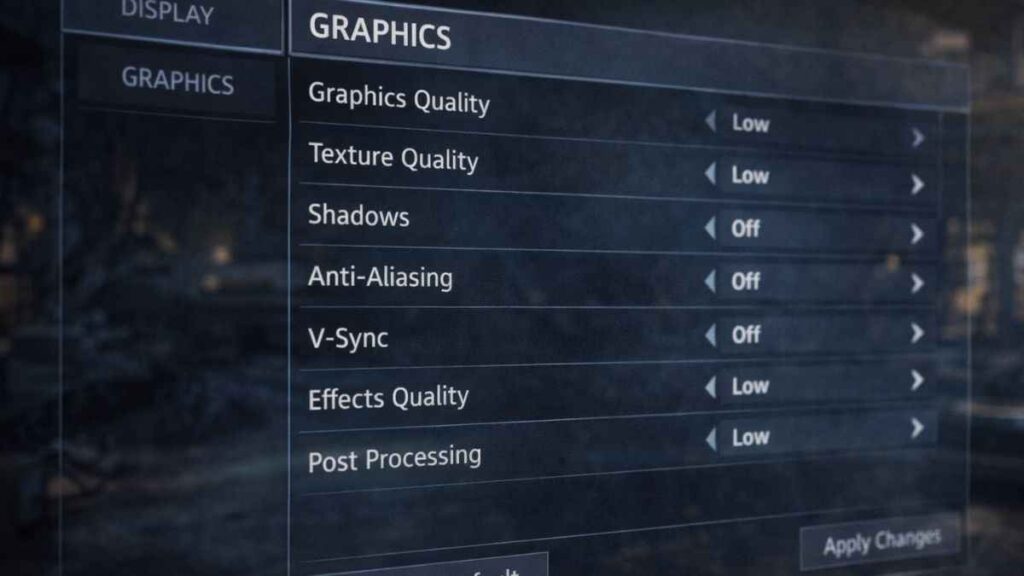
Never run games on default settings. Change these:
- Resolution: Lower it
- Texture Quality: Low
- Shadows: Off
- Anti-Aliasing: Off
- V-Sync: Off
- Effects: Low
✅ Insert Table Here
Recommended Settings for Low-End PC Gaming (4GB RAM)
| Setting | Recommended Option for 4GB RAM PC | Why This Helps |
|---|---|---|
| Resolution | 1024×768 or lower | Reduces GPU and RAM load |
| Texture Quality | Low | Uses less memory |
| Shadows | Off | Improves FPS instantly |
| Anti-Aliasing | Off | Removes extra processing load |
| V-Sync | Off | Prevents FPS drop |
| Effects | Low | Stabilizes performance |
| Background Apps | Closed | Frees RAM |
| Power Plan | High Performance | Uses full CPU power |
| Virtual Memory | 4096 – 8192 MB | Supports low RAM systems |
Step 5: HDD Users – Defragment Your Drive
Search “Defragment and Optimize Drives” → Optimize your main drive.
This improves loading speed and reduces freezes.
Step 6: How to Increase FPS Without Graphic Card
- Update graphic drivers
- Lower desktop resolution
- Use windowed mode
- Clean temporary files (Disk Cleanup)
- Keep Windows updated
Extra Tips Most Gamers Ignore
- Restart PC before gaming
- Keep 20% disk space free
- Avoid heavy software
- Use a lightweight browser while gaming
Final Thoughts
A low-end PC with 4GB RAM can still run games smoothly if optimized correctly. In most cases, lag is caused by poor settings — not weak hardware.
I have personally guided many gamers to fix these issues without spending money, and these same steps will help you too.
Apply these settings carefully and enjoy smoother gameplay.
Happy Gaming! 🎮
More Article: Best Unblocked Games for School Chromebook (No Download) – 2026
How to fix lag in a low-end PC?
Lag on a low-end PC is usually caused by limited hardware resources. You can reduce lag by:
Lowering in-game settings: Reduce resolution, shadows, textures, and effects.
Updating drivers: Make sure your GPU and CPU drivers are up-to-date.
Closing background apps: Free up RAM and CPU by shutting down unnecessary programs.
Using game boosters: Software like Razer Cortex can optimize system performance temporarily.
Upgrading hardware: If possible, adding more RAM or an SSD can make a huge difference.
Can low RAM make a game lag?
Yes, low RAM can cause lag. When your PC doesn’t have enough RAM:
The game may stutter or freeze frequently.
Loading times increase.
The system uses the slower hard drive as temporary memory (paging), which slows down performance.
How to run GTA 4 smoothly on 4GB RAM?
To run GTA 4 on a PC with 4GB RAM:
Lower in-game graphics settings: Set textures, shadows, and reflections to low.
Set the resolution lower: 720p can improve performance.
Close background apps: Free up as much RAM as possible.
Install performance mods: Some mods optimize GTA 4 for low-end PCs.
Defragment your hard drive or use an SSD: Helps reduce loading lag.
Is a 4GB RAM PC good for gaming?
A 4GB RAM PC is considered low-end for modern gaming:
It can handle older or lightweight games smoothly.
Modern games often require 8GB or more for good performance.
Performance heavily depends on your CPU and GPU as well.